Claude does the setup work in your browser. You sign in, paste a few keys, and click Allow. Every step below says what Claude does automatically and what only you can do.
1. Get Claude and Claude in Chrome Ready
Claude in Chrome lets Claude click, type and read pages in your Chrome browser, so it can fill in hosting, Google and website settings for you. It works on paid Claude plans (Pro, Max, Team and Enterprise) and in Google Chrome only.
YouInstall the Claude desktop app from claude.ai/download and sign in.
YouAdd Claude in Chrome
Open Chrome, signed in to your business Google account.
Open the Claude in Chrome page in the Chrome Web Store and click Add to Chrome.
Sign in with your Claude account when asked.
Pin it: click the puzzle-piece Extensions icon, then the thumbtack next to Claude. The Claude icon now sits next to the address bar.
Click the Claude icon to open the side panel. It stays open while you move between pages.
The Claude icon (orange) sits next to the address bar after you pin it. The puzzle piece is Chrome's Extensions menu.
YouConnect Chrome to the Claude app
In the Claude app, click your initials (lower left) and choose Settings.
Go to Customize, then Connectors.
Find Claude in Chrome, click Configure and turn it on.
In a chat, open the Connectors menu and switch Claude in Chrome on for that chat.
Also connect Google Drive, Google Sheets and Google Calendar on the same Connectors page.
2. Choose How Claude Asks for Approval
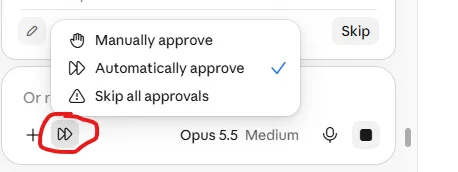
The button to the left of the model name in the chat box sets how often Claude stops to ask before it acts. Click it to switch.
The approval menu in the chat box. The circled button opens it.
Mode
What happens
Use it for
Manually approve
Claude asks before each action. You click Allow or Deny.
Anything that touches money, payments or messages to customers.
Automatically approve
Claude keeps working and checks each action itself. It blocks unsafe ones and stops to ask when it needs you.
The install. This is the recommended setting while setting up Service Hub.
Skip all approvals
Claude doesn't pause and nothing checks its actions.
Only a test computer you fully trust. Not recommended for setup.
Chrome Site Permissions
The first time Claude works on a site, the side panel shows New permissions required:
Always allow actions on this site: pick this for the sites the install uses: your hosting control panel (for SiteGround, Site Tools), script.google.com, console.cloud.google.com and search.google.com.
Allow this action: one action only. Use it everywhere else.
To review or remove sites later: Claude icon, the three dots in the side panel, Extension settings.
Always yours to do: Claude never creates accounts, types passwords, makes purchases or enters card details, and it always asks before downloading a file or entering sensitive information. Those steps are marked You below.
3. Accounts and Domain
YouSign up for Google Workspace on your domain, turn on 2-Step Verification, and add users for the office and crew.
ClaudeWrites every DNS record (email, verification, app subdomains); You paste them at your registrar or host.
YouBuy hosting with PHP 8, PostgreSQL and cron (SiteGround GrowBig or higher works) and turn on SSL.
ClaudeOpens each Google Cloud page and names the project; You add billing and create the restricted Maps key and an Anthropic API key with a monthly limit, then paste them into the installer.
4. CRM Sheet and Team App
YouOpen the template CRM and choose File > Make a copy.
ClaudeRuns Install: creates every tab, setting, Drive folder, team calendar and timer, then deploys the Team App. You approve Google's permission screen once.
ClaudeImports your customer list or old software export, removes duplicates and puts unclear rows on a review tab for you.
During setup, keep Settings > Team alerts set to Off and Customer messages set to Off, so test runs don't text or email anyone.
5. PostgreSQL Database
Service Hub runs on a real database from the start: screens open and saves finish in about a third of a second. Your Google Sheet stays in sync behind it as a readable copy.
YouCreate the database. In your hosting panel (SiteGround: Site Tools > Site > PostgreSQL), click Create for the database and the user. Claude fills in the names and gives the user all privileges; you copy the password it generates.
ClaudeChecks PHP (version 8.2 or newer with the PostgreSQL driver) and switches the version if needed, with your OK.
ClaudeLinks the Team App to the database: runs the database setup in the Team App, which makes a private sync key and the sync timers.
ClaudeUploads the settings file one folder above public_html, where the web can't read it. You paste the database password into it.
ClaudeUploads the database API to /hub and opens /hub/db-setup.php. Paste the sync key and it checks everything, creates the tables and copies your CRM in. Every line should say OK.
ClaudeAdds the 5-minute timer (hosting Cron Jobs). You click Create.
ClaudeFills the photo store so every job photo opens instantly, and turns on backups: an hourly activity log and a daily dated copy in your Google Drive.
6. Office Hub and Crew App
ClaudeBuilds the Office Hub and phone app with your name, logo, colors, services and prices, uploads them, and checks every file.
YouSign in to the Office Hub with the emailed code, then install it from Chrome. On each crew phone, open the app link and choose Add to Home Screen.
YouConnect QuickBooks (pay links), and choose which social accounts to connect.
7. Website, SEO and Listings
ClaudeBuilds the website in a hidden test folder, connects Search Console, Bing and Analytics, submits sitemaps, and checks your directory listings. You approve the preview, then say "build" to publish.
8. Test, then Go Live
ClaudeRuns a test job end to end on a test customer: estimate, approval, booking, photos, completion, invoice link. It checks that the Sheet, the database and the calendar all match, then closes the test records.
YouPreview every customer message, then turn Customer messages and Team alerts on when you're ready.